
The SharePoint Setup
This feature enables the integration of SharePoint into Business Central.
Files can be read from SharePoint and imported into eDocs (Inbound).
Additionally, there is the option to automatically store posted documents such as invoices and credit notes in SharePoint (Outbound).
Thus, the SharePoint connection serves as a central external storage for incoming and outgoing documents.
Prerequisites
An app registration in Microsoft Entra ID is required to set up the SharePoint connection.
The following values must be determined in the Azure Portal:
Tenant ID
Found under: Microsoft Entra ID → Overview → Directory ID
Client ID
Found in App Registration → Application ID
Client Secret
Created under Certificates & Secrets
Redirect URI (Redirect URL)
Must be configured in the App Registration under Authentication
Additionally, the required API permissions for SharePoint must be set and approved by an administrator.
Under External Storage Locations the section SharePoint Setup is available.
This must be fully configured to use the SharePoint connection for inbound and outbound.
SharePoint Setup:
In this step, the connection to SharePoint is configured.
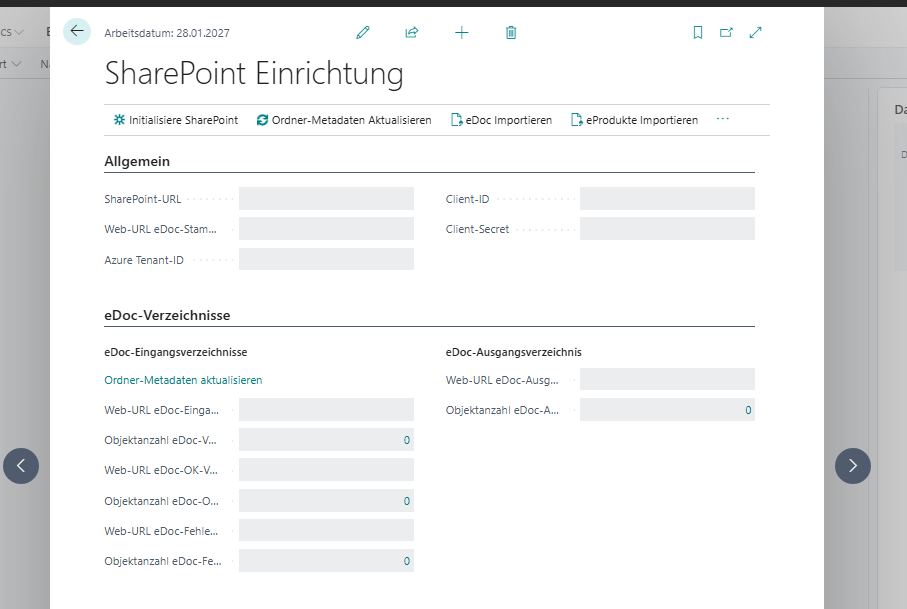
The following fields must be initialized:
SharePoint URL
URL of the SharePoint site
Web URL eDoc root directory
Folder path relative to the site collection.
Example: /Shared Documents/Reports
If this value is changed, it must also be adjusted in the Document Sending Profile.
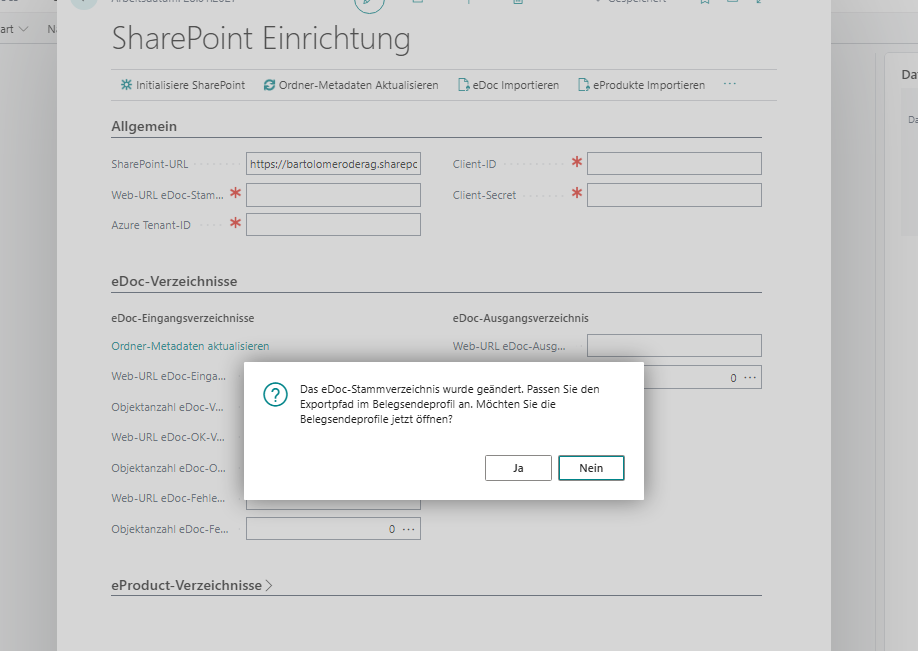
Azure Tenant-ID
Tenant ID (Directory ID) of Microsoft Entra ID.
Client-ID
Application ID of the app registration.
Client-Secret
Value of the secret client key for authentication.
Actions
After setup, the following actions must be performed:
-
Check SharePoint access:
Verifies whether a connection to SharePoint can be successfully established. -
Initialize SharePoint:
Creates the eDoc root directory in SharePoint.
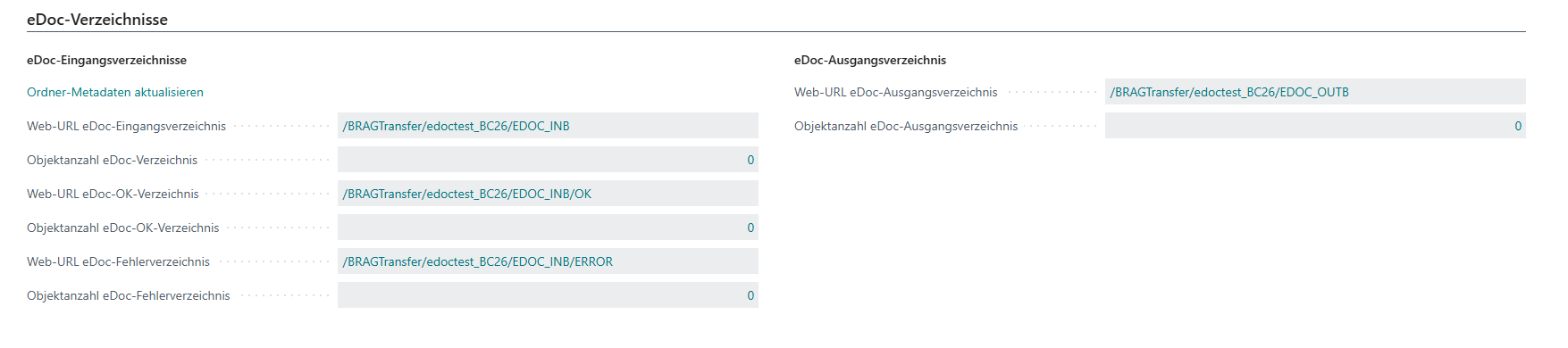
Update Folder Metadata
Sets the required metadata in the eDoc directory.
After successful completion, the SharePoint connection is ready for use.
Import eDoc
In the Import eDoc section, files from the SharePoint folder EDOC_INB can be imported into the system.
The import distinguishes between:
-
Valid eDocument
The file is successfully imported and moved to the OK folder. -
Invalid or faulty eDocument
The file is moved to the ERROR folder.
Regardless of the status, faulty eDocuments are also created in the eDocs.
This allows for subsequent analysis and error checking directly in the system.
Document Sending Profile
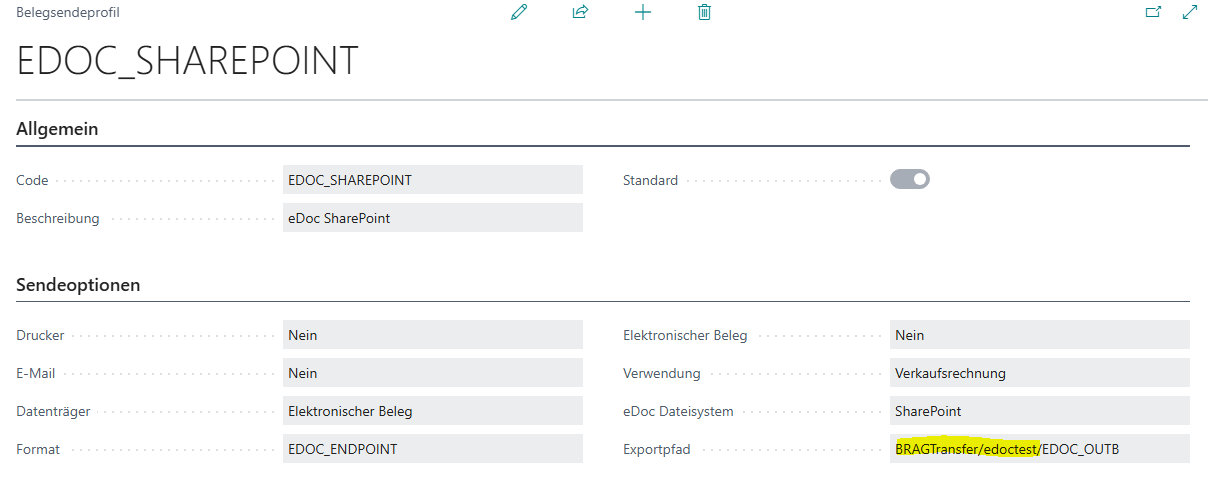
The Document Sending Profile is used for outgoing documents to store them in SharePoint.
It is important that the export path starts with the correct web URL of the eDoc root directory.
If the path is changed in the SharePoint setup, it must also be adjusted in the Document Sending Profile.
Only in this way is it ensured that the documents are stored in the correct folder (EDOC_OUTB).
Task Queue Item
Among the task queue items there is an entry with the code EDOC-IMPORT-SHAREPOINT.
This can be configured so that the SharePoint folder is checked at defined intervals and new files are imported automatically.
This fully automates the import process.

SharePoint Batch Import
In the incoming eDocs, under More Actions the SharePoint Batch Import is available.
This allows multiple files to be imported collectively directly from SharePoint.
For more information, please visit: brAG eDoc App