Outgoing Documents - Sending of eDoc Documents
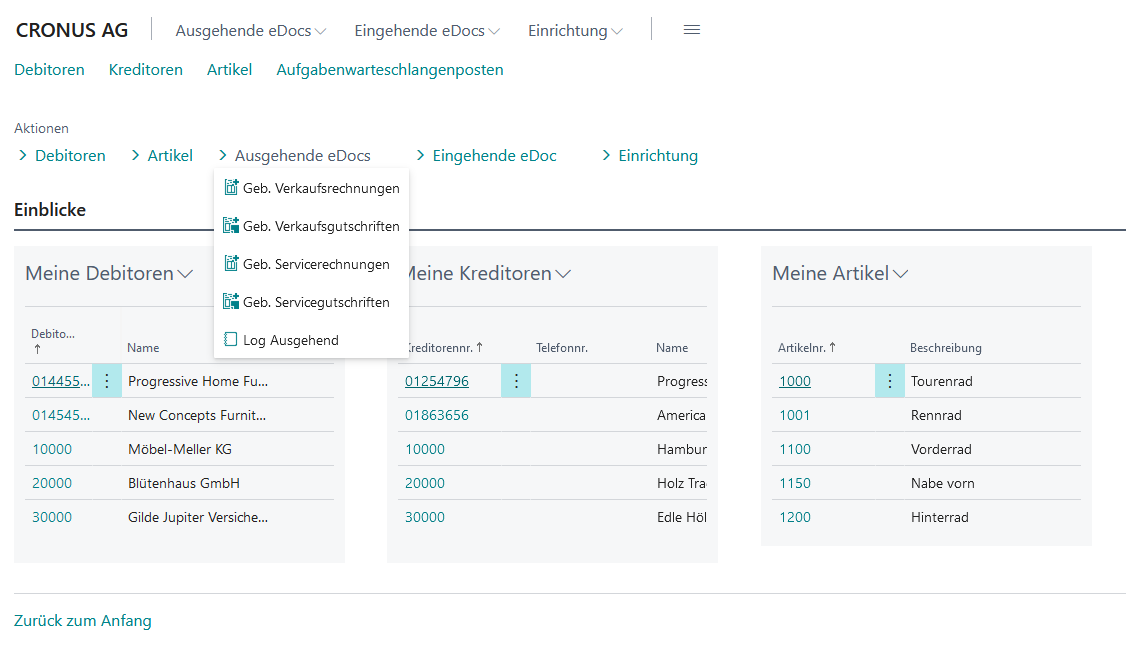
Before sending an electronic document via the eDoc App the flag eDoc Active must be activated in the Customer.
The sending of documents via the eDoc App is fully integrated into the standard function Document Sending Profiles . In the Document Sending Profile a default profile for outgoing documents can be set. To do this, check the box Default in the desired profile.
The format for outgoing documents is set in the eDoc Setup or can be set individually per customer in the Customer Master Data .
The entry of lines in sales invoices must be done as follows: Discounts must be recorded with a positive unit price and a negative quantity.
Customer Master Data
To avoid issues with e-invoices, it must be ensured that the following fields in the customer master are maintained completely.
-
complete address information
-
region/country code
-
payment method code and payment terms code
For SEPA direct debits, the preferred bank account code in the customer master must now be filled in mandatorily!
Tab 'General'
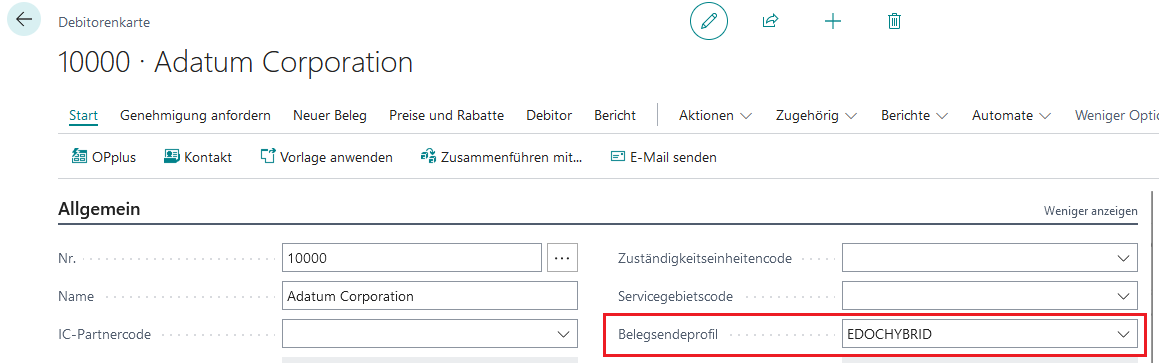
Document Sending Profile For each customer, a preferred method for sending sales documents can be set up here. This will then be automatically used during "Post and Send".
Tab 'eDoc'
The eDoc app must be activated separately for each customer in the eDoc tab!

eDoc Active Set the field to enable transmission.
eDoc Outgoing Profile Define the eDoc format to be generated.
eDoc Partner ID Uniquely specifies the invoice recipient (e.g., authorities, municipalities, ministries) according to EU Directive 2014/55/EU
eDoc Test Indicator Set the field to mark as "test document." The incoming document at the business partner is identified as a "test invoice."
Document Sending Profile
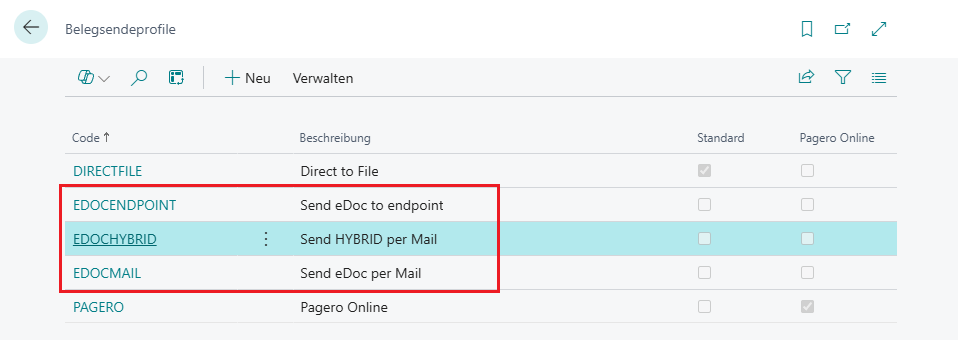
On the "Document Sending Profiles" page, various sending profiles are provided that you can select in the customer card.
|
Name |
Description |
|---|---|
|
EDOCENDPOINT |
For sending via a document exchange service |
|
EDOCHYBRID |
Email with file attachment, PDF with XML e.g. ZUGFeRD or Factur-X |
|
EDOCMAIL |
Email with file attachment, XML e.g. XRechnung, ebInterface and FatturaPA |
Make sure that the two fields "Document Sending Profile" and "eDoc Profile" correspond with each other! For example, an XRechnung will only be sent if the eDoc profile specifies the XRechnung format and the document sending profile provides an output with file attachment as described above.
Sending Documents
Sending documents via the eDoc app is fully integrated into the standard "Document Sending" function through the "Document Sending Profiles" feature.
Please make sure that each document is sent in a separate message! In the standard document sending, it is possible to select multiple documents for a customer and send them in one message. This is not eDoc-compliant; each document must generate a separate message (PDF/XML)!
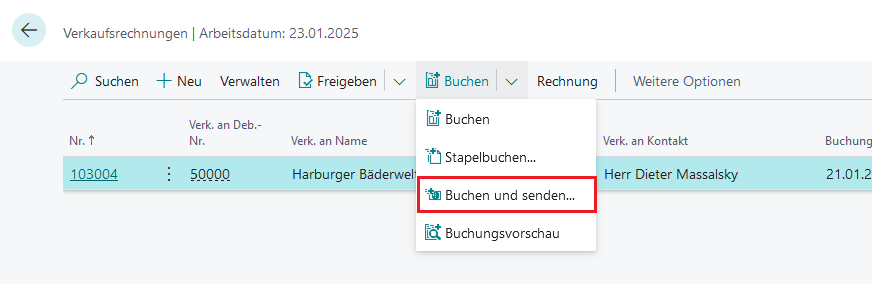
When you select "Post and Send" for a sales document, the sending profile used is displayed in the booking and sending confirmation dialog. This is either the profile set up for the customer or the default profile for all customers.
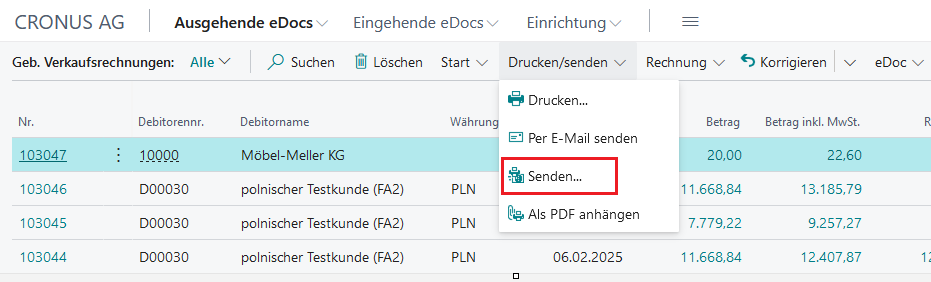
To retransmit already booked documents, select the "Send" button in the corresponding document list.
Outgoing Log
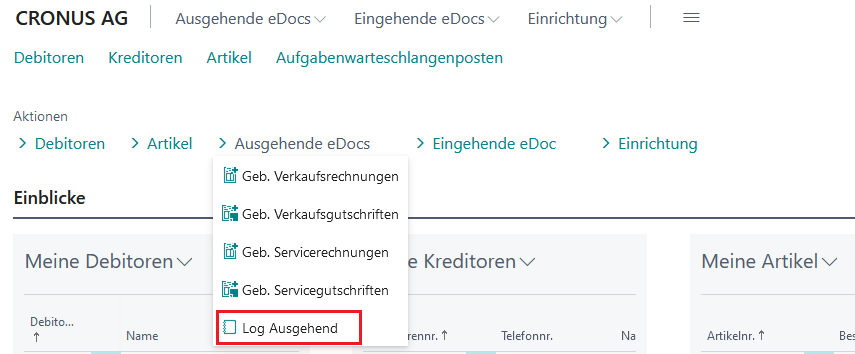
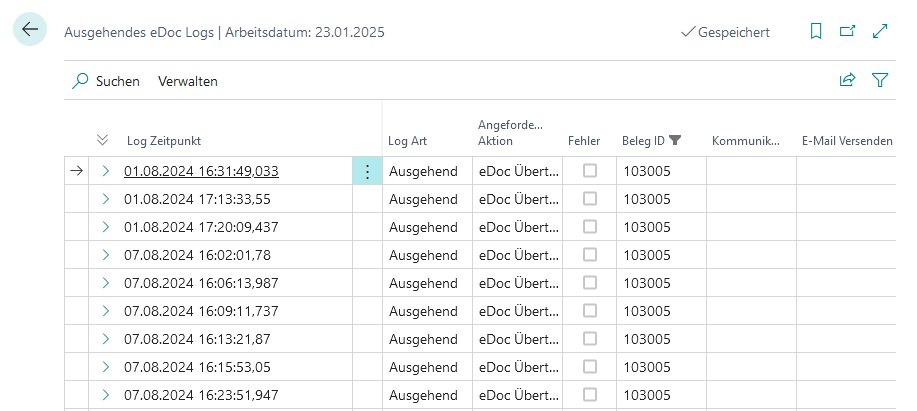
You can view the log for the posted documents in the "eDoc" action (Overview/Card), under the "eDoc Log" section for outgoing documents. The log records the eDoc app events and their status. It logs whether an event was executed successfully or with errors and, if applicable, the cause of the error.
For more information, please visit: brAG eDoc App