
Processing Incoming Documents
Overview eDocs
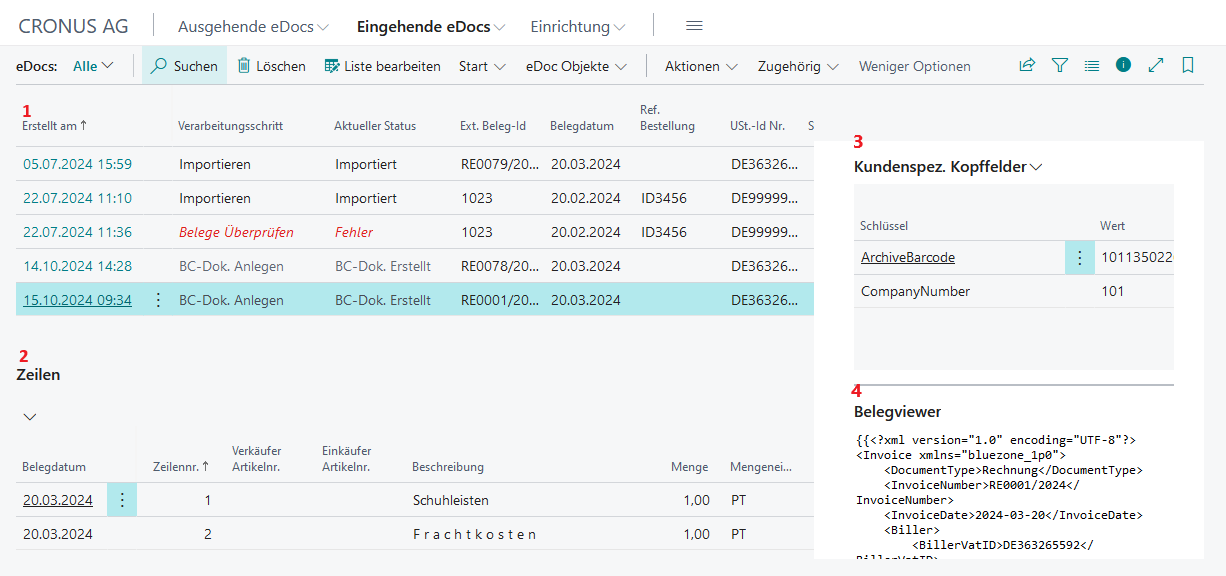
Alongside the overview of eDocs (1), the respective line item information of the selected document is displayed. (2) On the right in the info box, you will find the overview of customer-specific header fields (3), the document viewer with the original XML file (4), as well as the eDoc log.
In the eDocs overview, the column "Processing" shows the processing step carried out, and the column "Current Status" shows the current processing status of the document.
These are:
-
Import / Imported
-
Check Documents / Error
-
Check Documents / Imported
-
Check Documents / Checked
-
Create BC Document / BC Document Created
The remaining columns display information that originates from the XML file.
You have the option to switch directly from the overview to the associated card. There you will receive a detailed overview of all header and line fields. Additionally, confusion with other documents can be avoided. The card also allows you to edit the document.
The Inbound Process
The processing of incoming documents essentially takes place in 3 steps:
Import Document
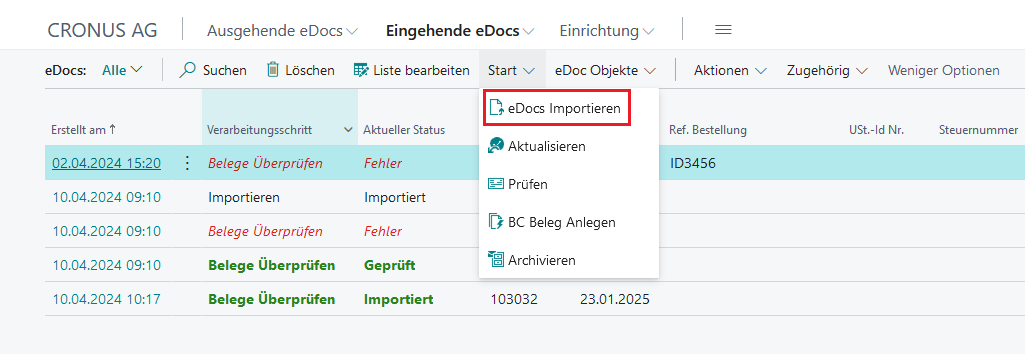
Import a document (e-invoice format) using the action Incoming eDocs/ Start/ Import eDocs. Afterwards, the imported document will be listed in the eDocs overview.
Check Document
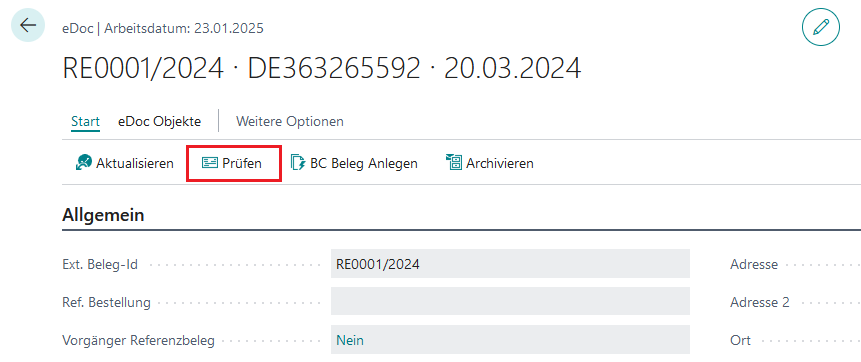
Before creating the BC document, the interface document is checked. Important fields for creating a BC document:
-
VAT ID The creditor must already be created and have a valid VAT ID. This VAT ID is used to populate the field “BC Creditor No.”
-
All BC fields Please ensure that valid values are present in all BC fields. If a field is not automatically populated, please enter the information manually.
Create BC Document
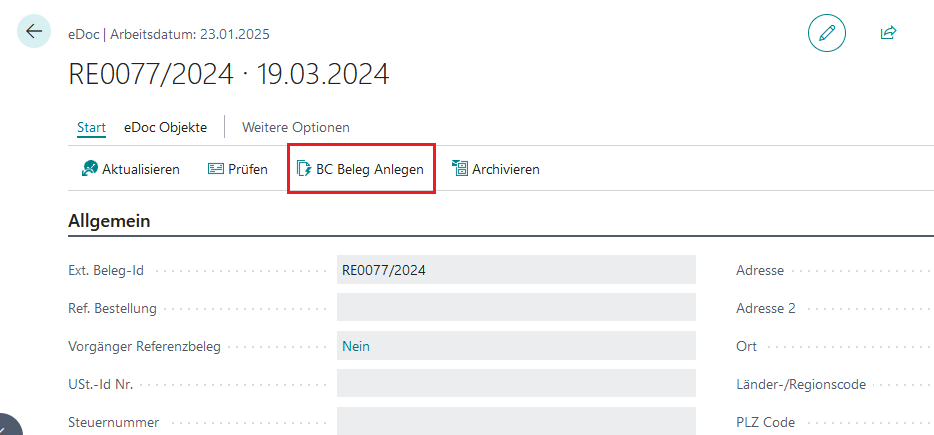
After all relevant fields have been filled out and no further errors appear in the log after updating, the actual BC document can be created using the "Create BC Document" action. After creation, the status changes to "BCDoc Created". Now we can view and post the actual BC document.
As the final step, after posting the actual BC document, you can archive the document in the eDoc overview.
Overview of the individual functions
-
Check Checks the selected document for possible errors.
-
Update Updates the status of the selected document after the error has been processed.
-
Create BC Document When the document has the status "Checked", the actual BC document can be created.
-
Archive Once the BC document has been created, the document can be archived.
-
eDoc Log Entries After updating, log entries for the selected document can be viewed. Error messages are also displayed here.
-
Show BC Document After the BC document has been created, you can view and post the actual document.
-
Show Import File Here, the imported file (XML or PDF) is displayed in the document viewer.
Log Entries
To get details about the errors, click on "Actions" and then on "eDoc Log Entries". In the log entries, the procedure and fields are listed on the left side, while the imported file is displayed in the document viewer on the right side.
For more information, please visit: brAG eDoc App