
Menu
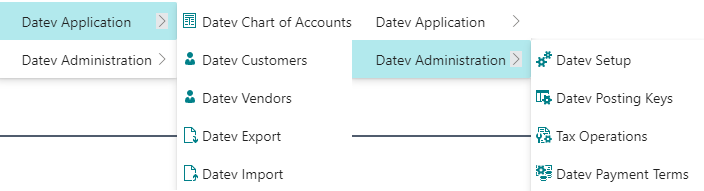
The menu is divided into two areas: “Application” and “Setup”.
DATEV Setup
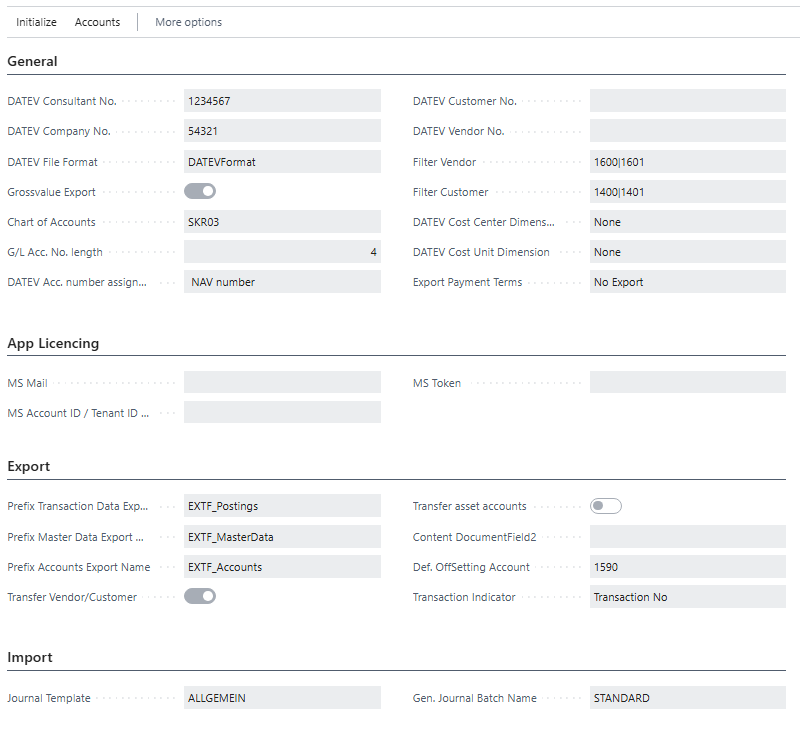
The DATEV setup is divided into the tabs General, BRAG Module Licensing, Export & Import.
Menu items
Using the menu item “Initialize chart of accounts” the BC chart of accounts can be initialized. In this process, those accounts that are marked as “DATEV automatic accounts” in the DATEV standard charts of accounts SKR03 or SKR04 are marked accordingly. As a rule, this process only needs to be carried out once during system setup.
What is a DATEV automatic account?
Automatic accounts have a program function in DATEV which causes DATEV, on the DATEV side, to calculate the VAT from the gross amount of the posting. The DATEV program posts the amount reduced by tax to the automatic account.

|
Initial creation of the DATEV posting key table for the charts of accounts 03/04 → assignment of posting groups. After initialization, the entered posting groups must be checked for existence and the posting matrices adjusted accordingly! See also page “DATEV Posting Keys”. |
|
Using the menu item “Initialize DATEV posting keys” the Tax Types table is initially filled. See also page “Tax Types”. |

|
Reset of the indicators in the customer/vendor accounts to “initial” so that, at the next transfer, the customer/vendor accounts are transferred as “New”. |
|
Using the menu item “Reset customer/vendor DATEV No.” the DATEV account number is determined according to the “DATEV account number assignment” setup. Only customer/vendor accounts for which the DATEV No. is blank are taken into account. As a rule, this function is only executed initially during system setup. |
General
The individual fields:
|
Fields |
Description |
|---|---|
|
DATEV Consultant No. |
The consultant number is assigned by DATEV and refers, e.g., to a tax consultant. The input can be max. 7-digit numeric. |
|
DATEV Company No. |
The client number is assigned by the tax consultant himself. This number can be stored numerically with a maximum of 5 digits. |
|
DATEV File Format |
The available format is the DATEV format. |
|
Transfer Gross Tax Values |
Define here if the export should be done via gross export (tax compression). With the gross export no separate tax line will be exported, per primary posting the gross amounts and the corresponding DATEV posting key will be exported. In the other procedure, a separate posting line for the tax posting is generated for each posting with tax. (Usually, the DATEV system expects the gross export procedure). |
|
Chart of Accounts |
Define here which chart of accounts it is in your NAV system. (Depending on the selected chart of accounts the DATEV App can support the initialization of the accounts - see also "Initialize chart of accounts"). |
|
G/L Account No. Length |
Specify how many digits (4 or 6) your account numbers have. |
|
DATEV account number assignment |
Define here if and how the DATEV account number assignment for debtors and creditors should be done.
|
|
DATEV Customer No. |
Number range, from which the DATEV personal account number is to be determined. Depending on whether DATEV account numbers are to be assigned automatically (see DATEV Account Number Assignment), they can also be maintained manually in the respective customers/vendors. The procedure is the same for customers and vendors. On the "DATEV" tab of the respective account, the "DATEV personal account number" can be assigned manually. |
|
DATEV Vendor No. |
(See DATEV accounts receivable no.) |
|
Filter Customer |
The first three digits of the collective account for receivables (wildcards possible) |
|
Filter Vendor |
The first three digits of the collective account for liabilities (wildcards possible) |
|
DATEV Cost Center Dimension |
NAV dimension from which the cost center is derived during export. |
|
DATEV Cost Unit Dimension |
NAV dimension from which the cost object is derived during export. |
|
Export Payment Terms |
Indicator that controls whether and how the terms of payment of the respective entry are exported. see also Page Payment Terms
|
App Licencing
At this point, the fields MS Account ID, MS Token, MS Mail must be configured on a customer-specific basis.
The following fields are mandatory:
-
MS Account ID: Required for transmitting data to the web service.
-
MS Token: Provided by bartolome röder AG.
-
MS Mail: Used for identification with the web service.
Export
In the Export section, you define how exported files are saved.
File Name Prefix:
The names of the exported files are determined using the following fields. In addition, the date and time are automatically appended to avoid overwriting existing files:
Description of the individual fields:
|
Fields |
Description |
|---|---|
|
Prefix Transaction Data Export Name |
Prefix for the exported transaction data (e.g., “EXTF_Postings”). |
|
Prefix Master Data Export Name |
Prefix for the exported master data (e.g., “EXTF_MasterData”). |
|
Prefix Accounts Export Name |
Prefix for the exported accounts (e.g., “EXTF_Accounts”). |
Additional Export Options:
|
Fields |
Description |
|---|---|
|
Transfer Vendor/Customer |
Enable this option if personal account numbers should be included. Relevant for collective accounts such as “Filter Collective Debtors” or “Filter Collective Creditors. |
|
Transfer asset accounts |
Enable this option if asset accounts should also be included in the export. |
|
Content DocumentField2 |
Determines how “Document Field 2” in the DATEV interface is populated when exporting sales invoices and purchase credit notes. |
|
Def. OffSetting Account |
Defines the clearing counter-account for multiple bookings. Required when the counter-account cannot be determined from the primary booking record (e.g., for line-item postings without a counter-account). |
|
Transaction Indicator |
Specifies the criteria used to select the line items of a primary booking. |
Import
The fields Booking Template / Name are available for import. The default template profile is 'DATEV' with the name profile 'STANDARD'.
Description of the individual fields:
|
Fields |
Description |
|---|---|
|
Journal Template |
Journal template for DATEV import. |
|
Gen. Journal Batch Name |
Journal name for DATEV import. |
Customers and Vendors
DATEV
In the DATEV tab you can view or change the DATEV personal account numbers of this current account.
Bank Accounts
You can export up to 5 bank accounts per vendor and customer. Open the DATEV tab. Please tick the bank accounts to be exported accordingly.
Payment Terms
In the payment terms you will find a column "DATEV Code". If this field is filled and the field "Export payment terms" in the DATEV setup is set to "DATEV codes", then the DATEV code will be transferred with the transfer of the person accounts. If the "Export payment terms" field in the DATEV setup is set to "NAV codes", the value from the "Code" column will be transferred. With the setting "no export" in the DATEV setup no payment terms will be exported.
DATEV Posting Key
Maintenance of the DATEV Posting Keys (control keys).
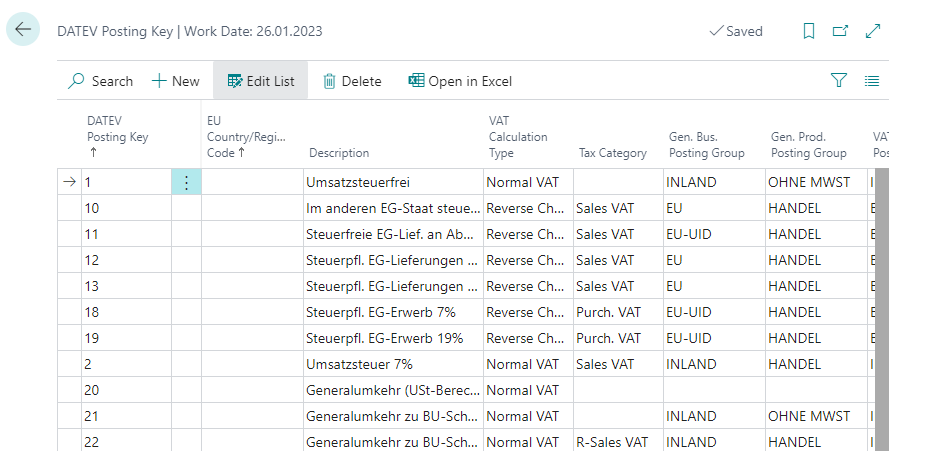
The fields in detail:
|
Fields |
Description |
|---|---|
|
DATEV Posting Key |
Code for the DATEV booking key |
|
EU Country/Region Code |
The country code is used during import to determine the booking groups. |
|
VAT Calculation Type |
Indicator to limit to which VAT posting groups this posting key may be assigned. |
|
Tax Category |
Indicator which types of tax this key is based on. Used in the "Tax types" table to restrict the selection in the DATEV posting key fields.
|
|
Gen. Bus. Posting Group |
Def. business posting group for this DATEV posting key when importing from DATEV. |
|
Gen. Prod. Posting Group |
Def. product posting group for this DATEV posting key when importing from DATEV. |
|
VAT Bus. Posting Group |
Def. VAT. Business posting group for this DATEV posting key when importing from DATEV. |
|
VAT Prod. Posting Group |
Def. VAT. Product posting group for this DATEV posting key when importing from DATEV. |
DATEV Tax Operation
Maintenance of tax types. The tax types are the summary of the four DATEV posting keys (input tax, sales tax, reversal input tax, reversal sales tax) for a specific tax transaction e.g. domestic 7%. The tax types are assigned to the respective transactions in the VAT posting matrix setup table and serve to simplify the assignment of the DATEV posting keys.
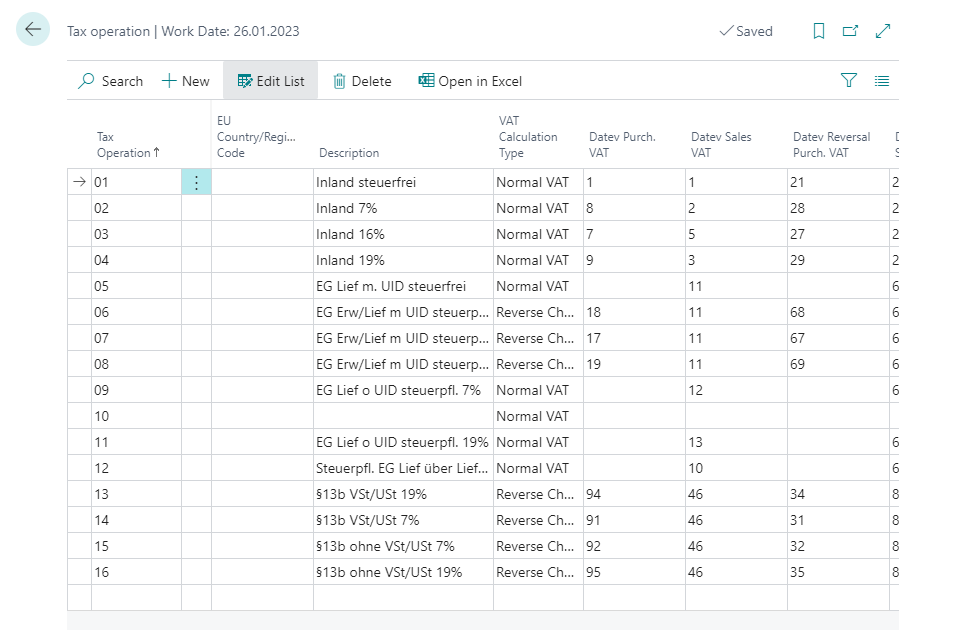
The fields in detail:
|
Fields |
Description |
|---|---|
|
ID |
Freely assignable code for the control type |
|
EU Country/Region Code |
The country code is used during import to determine the booking groups. |
|
VAT Calculation Type |
Indicator to limit to which VAT posting groups this posting key may be assigned. |
|
DATEV Purch. Vat |
DATEV posting key for the input tax transaction. |
|
DATEV Sales Vat |
DATEV posting key for the transaction VAT. |
|
DATEV Reversal Purch. Vat |
DATEV posting key for the input tax reversal transaction. |
|
DATEV Reversal Sales Vat |
DATEV posting key for the transaction Reverse VAT. |
VAT Posting Setup
In the VAT posting matrix, the correct DATEV posting keys are assigned to the tax transactions via the tax types. To do this, select the correct tax type for each line.
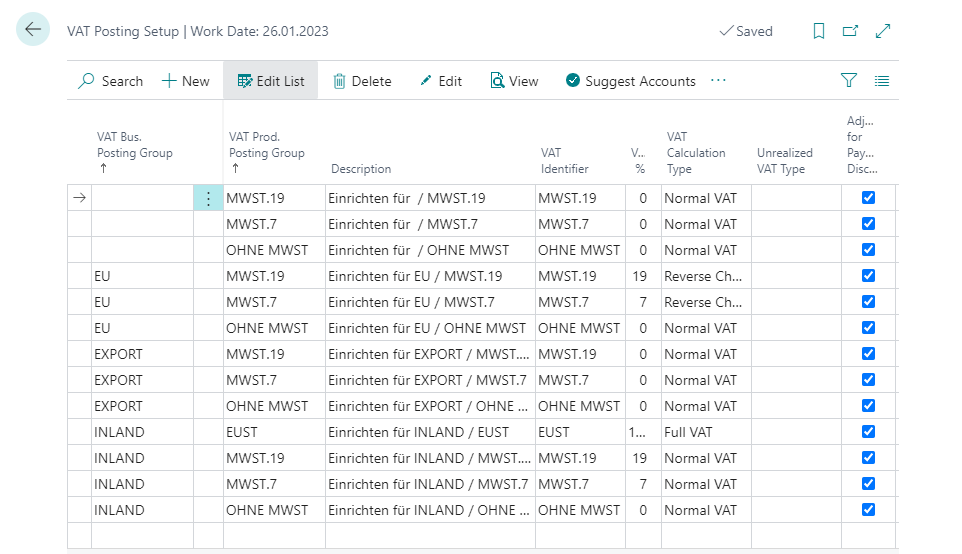
The most important fields in detail:
|
Fields |
Description |
|---|---|
|
Tax Operation |
Select here the tax type for the DATEV App that fits to this combination. |
|
DATEV Purch. Vat |
DATEV posting key for the input tax transaction. |
|
DATEV Sales Vat |
DATEV posting key for the VAT transaction. |
|
DATEV R-Purch. Vat |
DATEV posting key for the reversal input tax transaction. |
|
DATEV R-Sales Vat |
DATEV posting key for the reversal VAT transaction. |